Azure Container Apps Creation from Visual Studio Community 2026
🧱 Service Inputs
🚀 Azure Container Apps – Creation Steps
1.
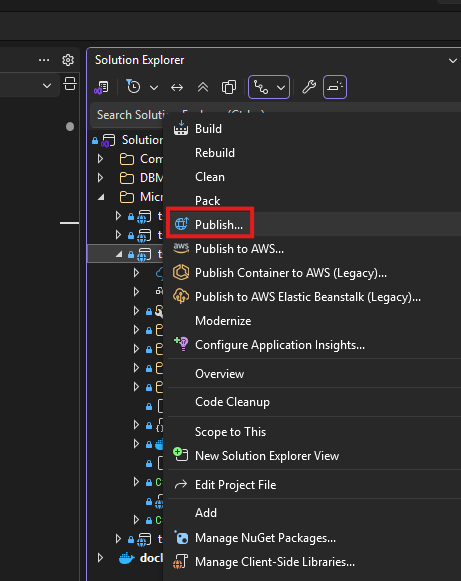
Right click the service project
2.
Click Publish
3.
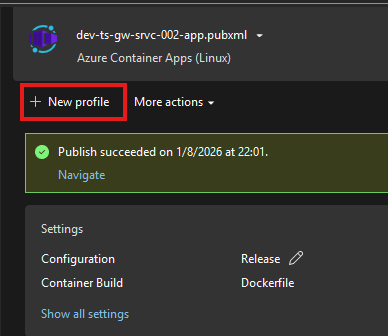
New Profile
4.
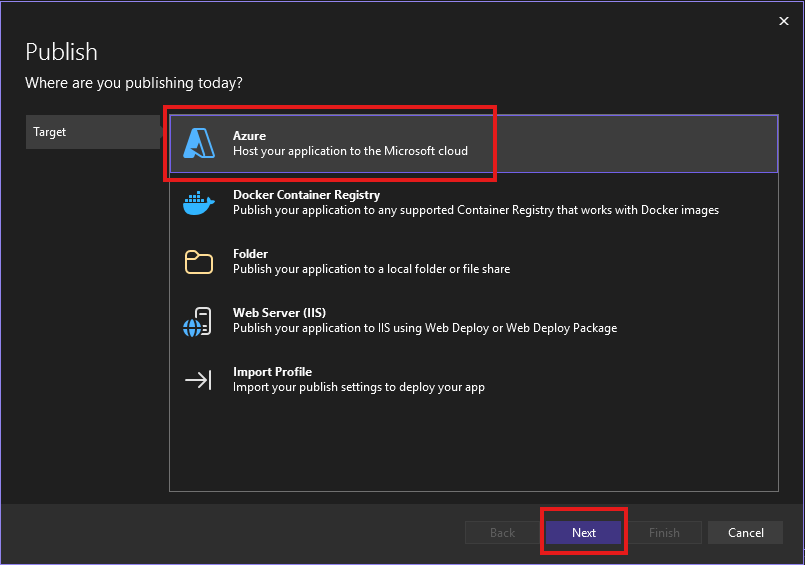
Select Azure & Click Next
5.
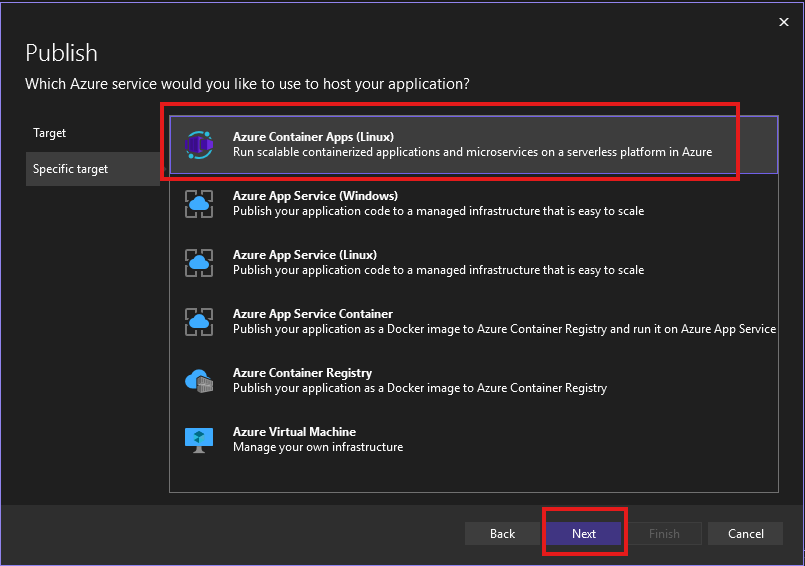
Select Azure Container Apps & Click Next
6.
Select and Expand Resource Group & Click Create new
Target Resource Group:
dev-se-Resource-group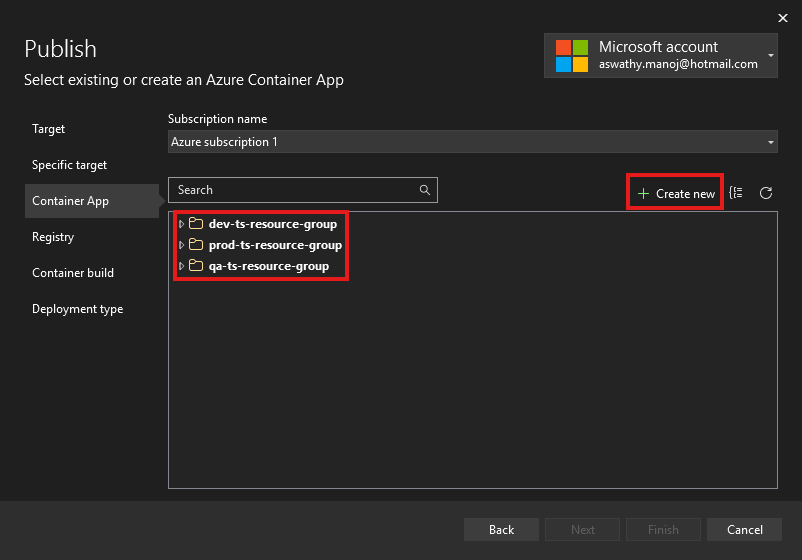
7.
Enter the Container App parameters & Click Create
Container app name:
dev-ts-gw-srvc-appSubscription name:
Azure subscription 1Resource group:
dev-se-Resource-group (East US)Container app environment:
dev-se-container-app-environment (East US)Container name:
dev-ts-gw-srvc-container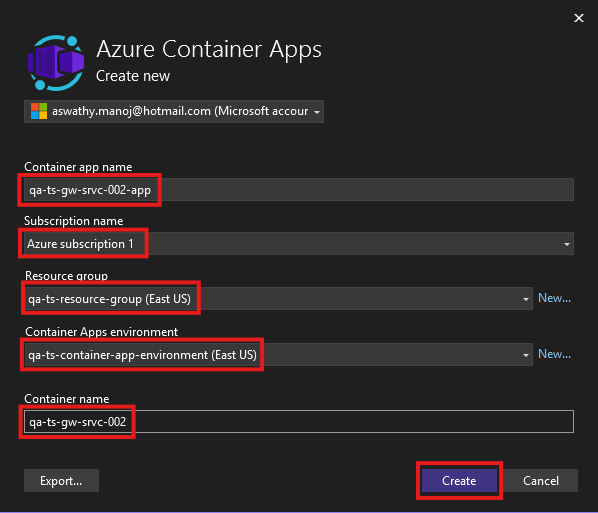
8.
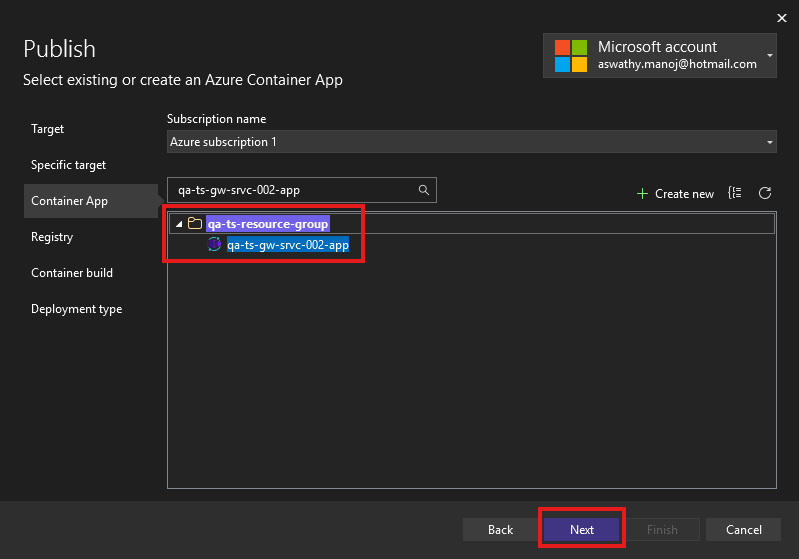
Click Next
9.
Select the Azure Container Registry (ACR) & Click Next
Registry name:
devseacr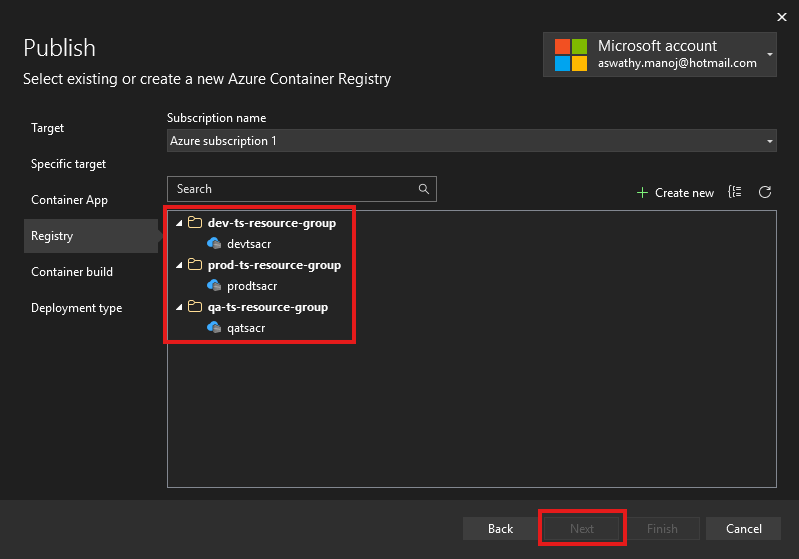
10.
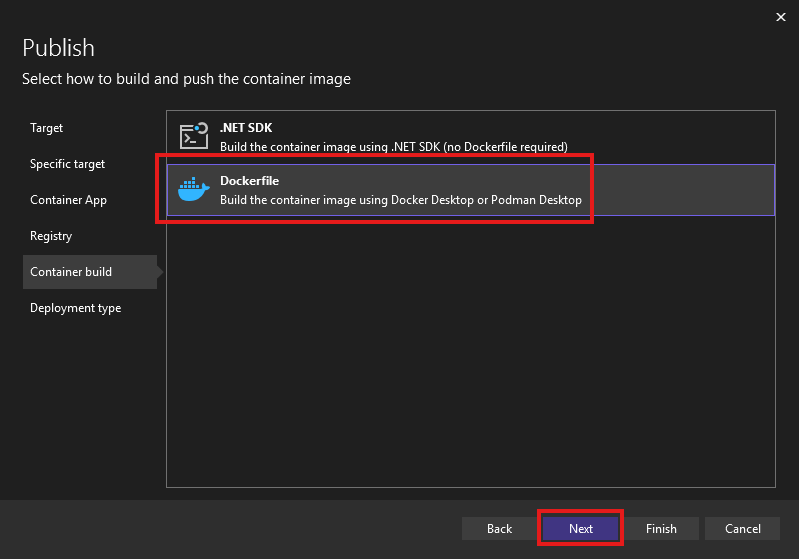
Select Dockerfile option & Click Next
11.
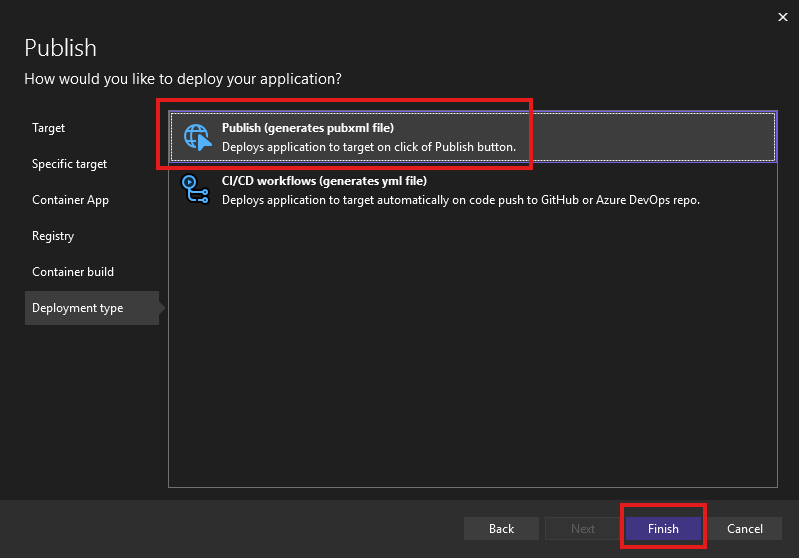
Select Publish (generates pubxml file) option & Click Finish
12.
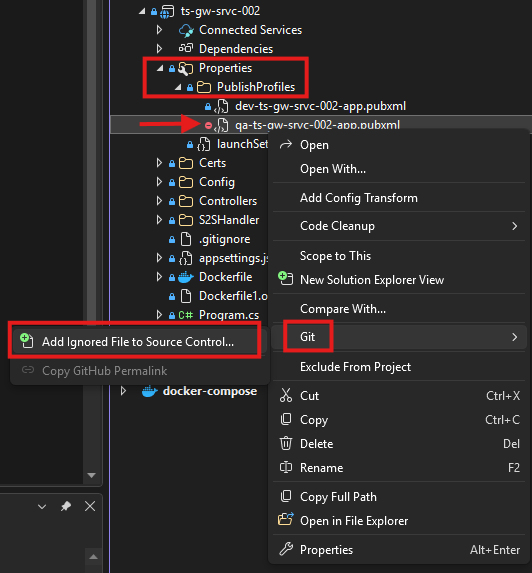
Go to the Properties → Publish Profiles → Right-click the new .pubxml file → Git → Add Ignored File to Source Control
12.
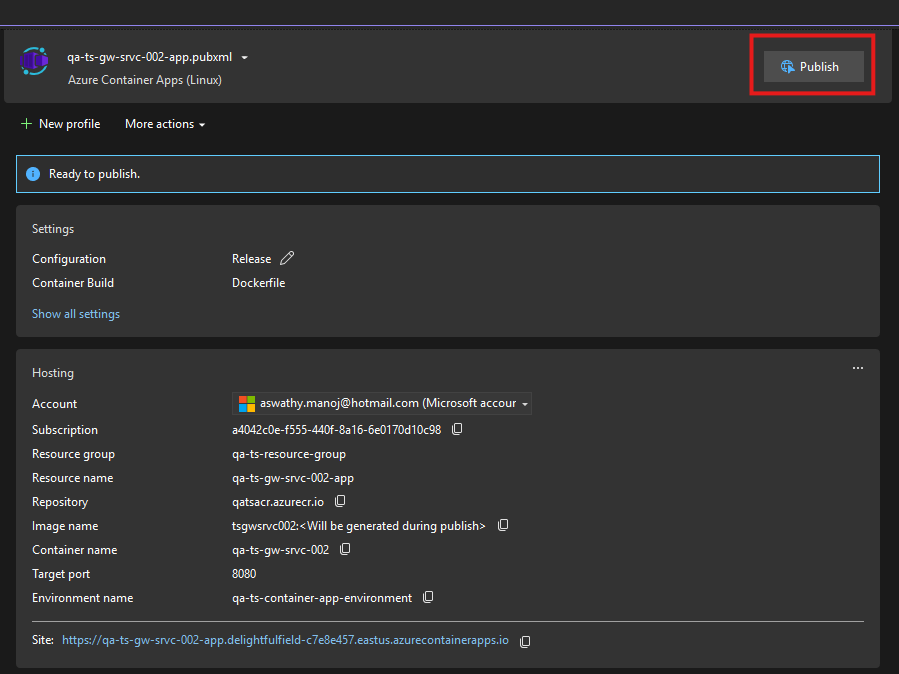
Publish the Container