BK Project Git Repository
- Baaki-2024 project can have multiple git respositories, within the same TFS project, per module to enable distributed architecture using microservices
- For example: multiple git repositories could be, one for auth, data, script services, database, common modules each
- Common modules will be placed under the TFS project git repository "BK" which will be created below
- Create a new repository with the Name "BK". Make sure to select visual studio ".gitingore" file
- Create a folder called "Baaki-2024" inside FinPlan-Org folder in the local workspace
- Open Visual Studio and clone the newly created "BK" repository from the TFS organization - FinPlan-org, from pm.aspireclan.com
- Show the local path to clone the BK source code repository workspace (D:\MKN79TrialWorks\PrivateGit\FinPlan-Org\Baaki-2024\BK)
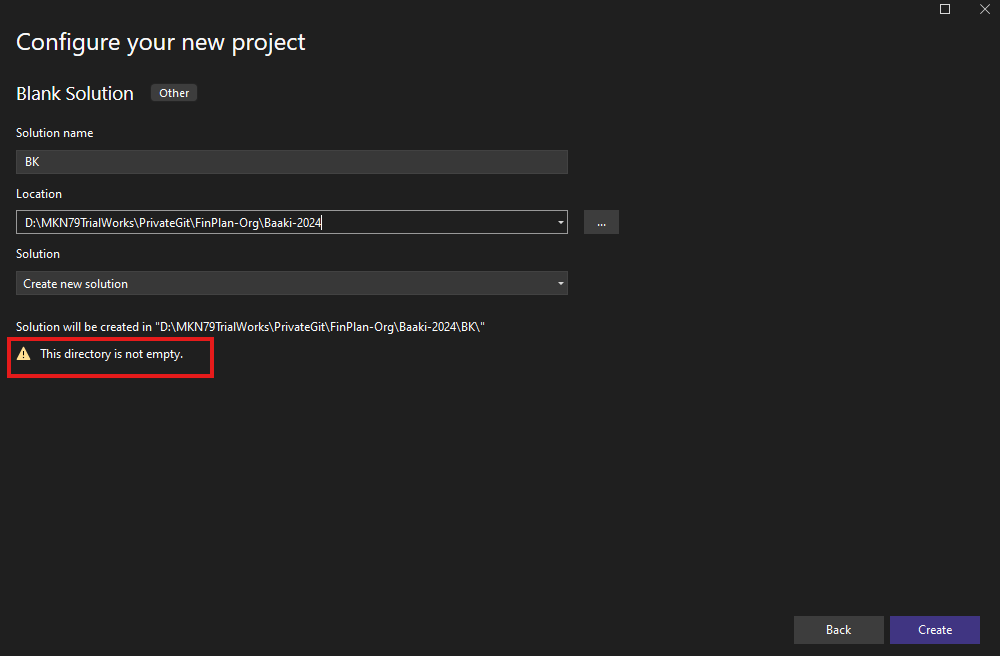
- In Visual Studio, create a new blank solution and name it "BK"
- Solution location is the cloned workspace location which is "D:\MKN79TrialWorks\PrivateGit\FinPlan-Org\Baaki-2024"
- This should create a solution folder by itself and the final solution should be inside "D:\MKN79TrialWorks\PrivateGit\FinPlan-Org\Baaki-2024\BK"
- During the above step a warning will be shown sayng "The directory is not empby". Please ignore the warning and click "Create"
- Check-in pending changes
- To add an existing project to "BK" solution, eg: ACLogManager:
- Copy ACLogManager form the latest previous project and place it inside "D:\MKN79TrialWorks\PrivateGit\FinPlan-Org\Baaki-2024\BK" folder
- Delete the "bin" and "obj" folder from ACLogManager
- Create a solution folder "CommonModules" in "BK" solution
- Right click the newly created "CommonModules" solution folder and add AC Log Manager as an "existing" project. Browse to the ACLogManager folder and select the .csproj file
- Click "Open"
- Check in the changes to "BK" Solution
- Create 4 branches, xxx-feature/dev/qa/prod in the git repository
[REPEAT FOR OTHER REPOSITORIES]
- To add a new project with its own Git Repository to the "BK" solution, eg: BK-WEB:
- Create a new git repository in "Baaki-2024" TFS Project and name it "BK-WEB"
- Make sure to select visual studio ".gitingore" file while creating the git repository
- Open Visual Studio and clone the newly created "BK-WEB" repository. Show the local path to clone the "BK-WEB" source code repository workspace (D:\MKN79TrialWorks\PrivateGit\FinPlan-Org\Baaki-2024\BK-WEB)
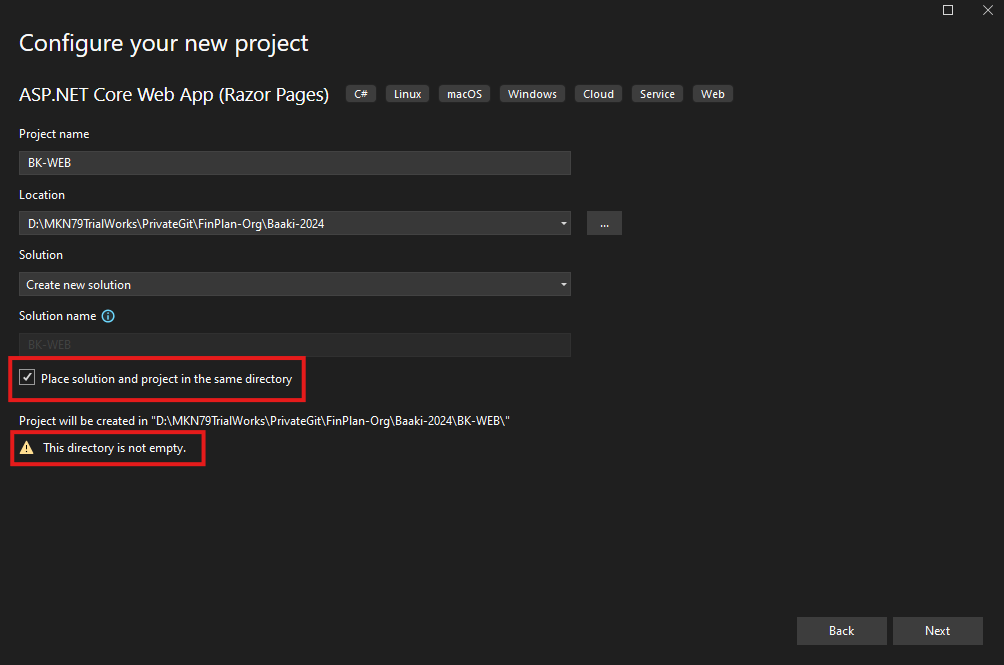
- Go to Visual Studio and create a new project from "ASP .NET Core Web App (Razor Pages)" template
- Name the project "BK-WEB"
- Project location: "D:\MKN79TrialWorks\PrivateGit\FinPlan-Org\Baaki-2024"
- Make sure to select the option "Place solution and project in the same directory"
- When selecting the above option, a warning will be shown saying "The directory is not empby". Please ignore the warning and click "Next"
- Please ensure all the below options are selected and then click "Create"
Web Application (Razor Pages)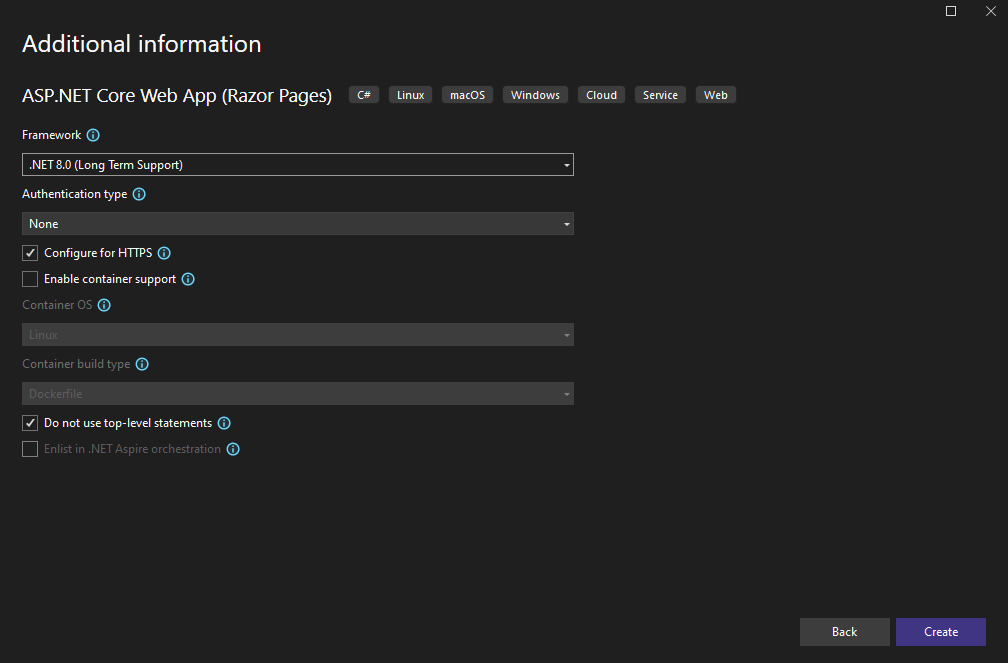
Web API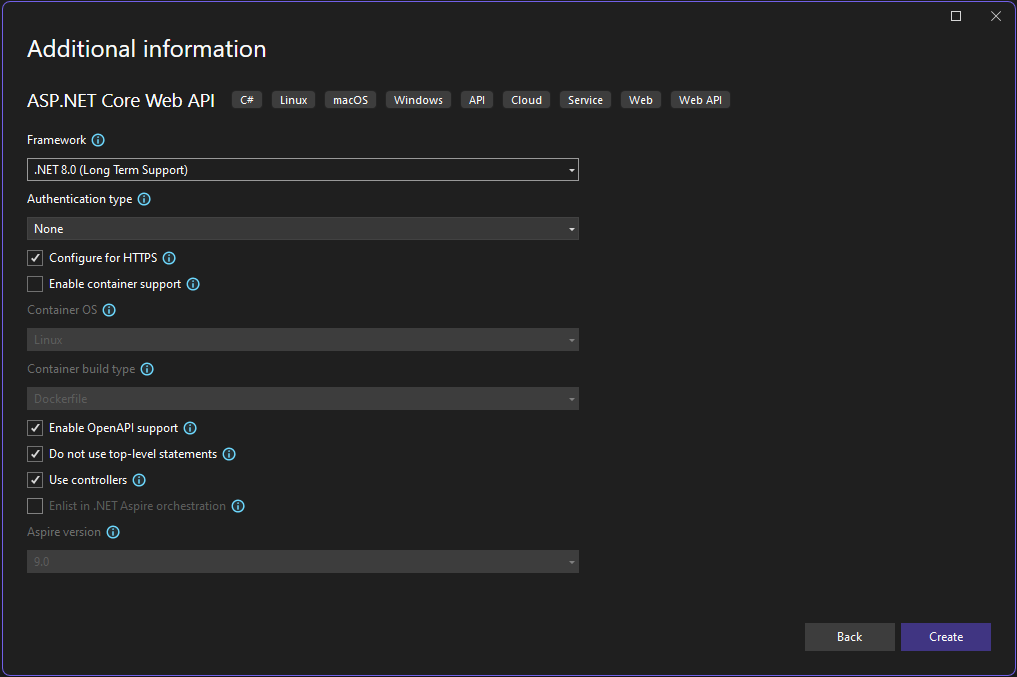
- Check in the changes to "BK-WEB" Solution
- Close the "BK-WEB" Visual Stuido Solution
- Open "BK" solution
- Create a solution folder "BK-WEB" in "BK" solution
- Right click the newly created "BK-WEB" solution folder, select "Add" --> "Existing Project"
- Browse to the BK-WEB project folder and select the .csproj file
- Click "Open"
- Check in the changes to "BK" Solution
- Create 4 branches, xxx-feature/dev/qa/prod in the git repository