Log in to the vCenter Server: Using the vSphere Web Client.
Navigate to Administration: In the vSphere Web Client home page, click on Administration.
Under Single Sign-On, select Configuration.
Click on the Identity Sources tab.
Click on the Add Identity Source icon.
In the dialog that opens, select Active Directory (Integrated Windows Authentication) for Windows-based vCenter servers. If your vCenter is on a Linux-based appliance, you'll use the "Active Directory as an LDAP Server" option.
Enter the domain name (e.g., aspireclan.com) and the domain alias (NetBIOS name).
Provide the password for an account that has permissions to join machines to the domain.
Click OK.
Once added, you can set the domain as the default identity source if desired.
Permissions: To allow AD users and groups to access vCenter, you'll need to assign permissions. Go to the vCenter object in the vSphere Web Client, right-click, and choose Add Permission. From here, you can add AD groups or users and assign appropriate roles.
Test: Log out of the vSphere Web Client and then try logging back in using an AD account to ensure the integration works correctly.
Sync both vCenter time and Server time. Use US: 0.us.pool.ntp.org, 1.us.pool.ntp.org, etc.
Europe: 0.europe.pool.ntp.org, 1.europe.pool.ntp.org, etc.
Asia: 0.asia.pool.ntp.org, 1.asia.pool.ntp.org, etc. if required. Not mandatory
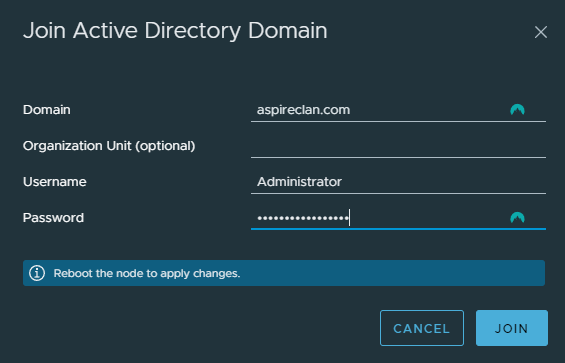
Use DNS server Administrator password to add to domain. Refer screenshot below
Certificate installation Steps
Enable SSH in ESXi
Directly connect to the ESXi host's Direct Console User Interface (DCUI) using a monitor, keyboard and
mouse
Go to Troubleshooting Options
Enable Enable SSH
Alternatively, if you are using the vSphere Client:
Select the ESXi host in the inventory
Go to the Actions tab
Go to the Services section
Click Enable Secure Shell (SSH)
Backup the existing certificate and key on the ESXi host using PuTTY. Follow below steps in putty
Open PuTTY
login as: [UserName]
Password: [Password]
Execute command: cat /etc/vmware/ssl/rui.crt. This will show the existing certificate in ESXi. Selecte all the texts shown in PuTTY from -----BEGIN CERTIFICATE----- to -----END CERTIFICATE-----
Highlight the content in the PuTTY window (this will automatically copy the highlighted content to your clipboard
Paste the content into a text editor on your Windows machine (e.g., Notepad) and save it with the appropriate filename (e.g., backup_rui.crt)
Execute command: cat /etc/vmware/ssl/rui.key. This will show the existing key in ESXi. Selecte all the texts shown in PuTTY from -----BEGIN PRIVATE KEY----- to -----END PRIVATE KEY-----
Paste the content into a text editor on your Windows machine (e.g., Notepad) and save it with the appropriate filename (e.g., backup_rui.key)
Keep PuTTY open
Open a command prompt with Administrator privilege and go to the PuTTY installated directory [usually it will be in C:\ProgramData\Microsoft\Windows\Start Menu\Programs\PuTTY (64-bit)]
Execute the command pscp "C:\Your path\Your certificate name.crt" root@[VMHost_IP]:/etc/vmware/ssl/rui.crt
Execute the second command pscp "C:\Your path\Your key name.key" root@[VMHost_IP]:/etc/vmware/ssl/rui.key [IMPORTANT: You should always use the domain.key created by the le64.exe]
Close the command prompt
Go back to the PuTTY
Execute the command /etc/init.d/hostd restart
Execute the second command /etc/init.d/vpxa restart